
Zapier audit: what to check every 3 months
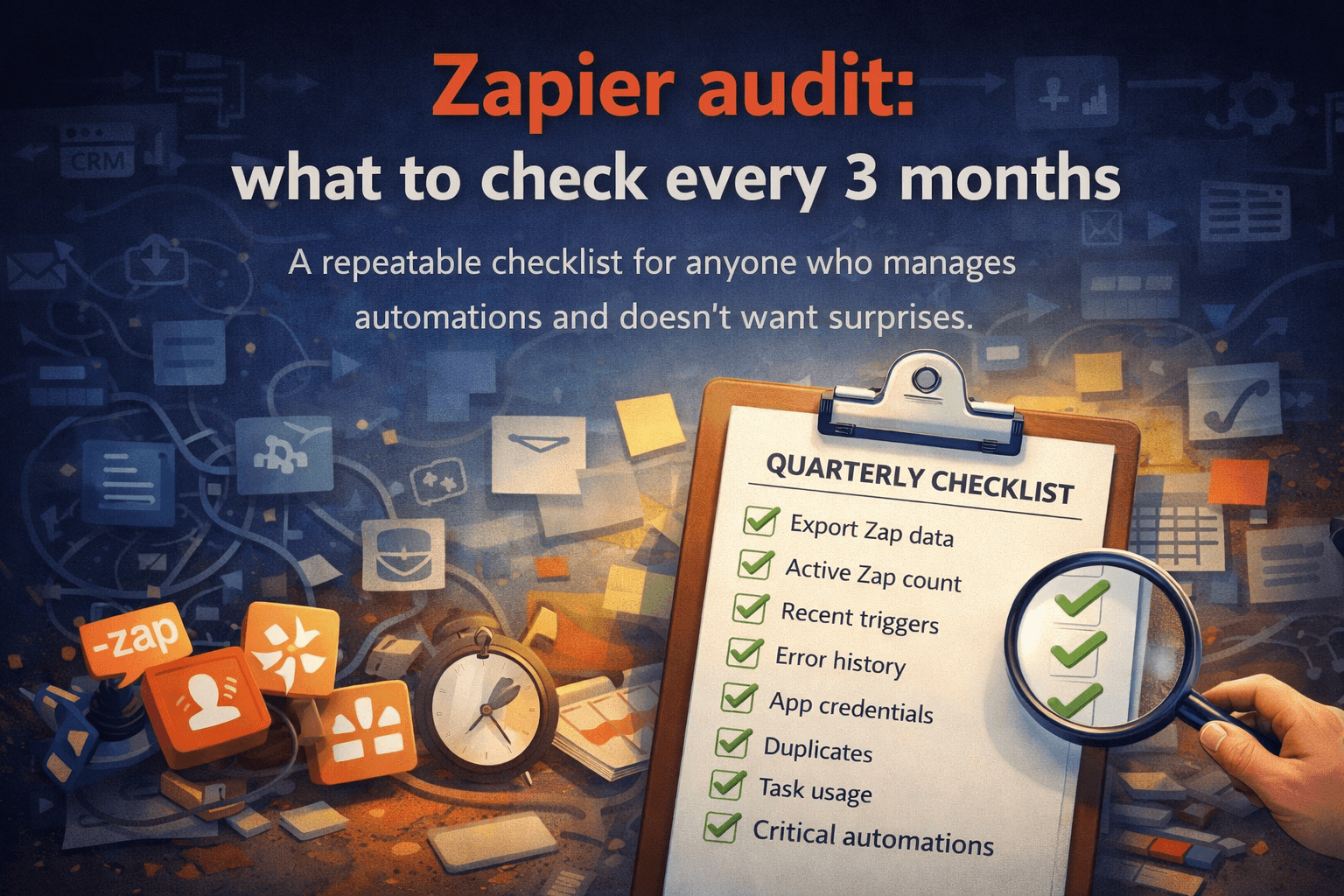
A repeatable checklist for anyone who manages automations and doesn’t want surprises.
Most automation problems don’t appear overnight.
They accumulate. A credential expires and nobody notices. An app updates its API and a field mapping quietly breaks. A Zap that was built for a process that no longer exists keeps running, consuming tasks, producing noise.
A quarterly audit doesn’t prevent all of that. But it catches it before it becomes expensive.
Here’s exactly what to check — and why.
Before you start: export your data
Everything starts here.
Zapier → Settings → Data Management → Export
You’ll get a ZIP file with your full Zap configuration. This is your source of truth for the audit.
If you're using a tool to generate the audit automatically, this is what you upload. If you're doing it manually, this gives you the full picture in one place instead of clicking through each Zap individually.
1. Check your active Zap count
How many Zaps are currently active?
Compare it to last quarter:
Is the number growing?
Shrinking?
Staying flat?
Growth isn’t bad — but uncontrolled growth is. If you added 10 Zaps this quarter and can’t name what five of them do, that’s a signal.
Also check: How many Zaps were turned off this quarter vs. created?
Most stacks accumulate without ever pruning. The audit is your pruning moment.
2. Review Zaps that haven’t triggered recently
Any Zap that hasn’t triggered in 30+ days deserves a question: why?
Usually one of three reasons:
The trigger condition just hasn’t happened yet — fine, leave it
The process it supports no longer exists — turn it off
It’s broken and failing silently — fix it or turn it off
Zapier shows last run date for each Zap. Sort by this. The ones at the bottom of the list are your first stop.
3. Check for recent errors
Zapier logs errors. Most people never look at them.
Go through your error history and ask: Which Zaps errored in the last 90 days, and were those errors resolved or just ignored?
An error that happened once and never recurred is probably fine. An error that keeps appearing every few days is a Zap that’s running, failing, and running again — silently degrading whatever process it supports.
These need to be fixed or turned off. A Zap that errors repeatedly isn’t an automation. It’s a scheduled failure.
4. Audit your connected app credentials
This is the one most people skip — and the one that causes the most damage.
For each connected app in Zapier, check:
Is the connection still active?
Is it authenticated under a personal account or a shared/service account?
Does the person whose account is connected still work here?
Automations authenticated under personal email accounts are a ticking clock. When that person leaves — or changes their password, or gets their account deactivated — every Zap using that connection breaks. All at once.
Any critical automation should be connected through a shared account or service account, not someone’s personal login.
5. Look for duplicates
Over time, most stacks develop redundancy.
Someone builds a Zap to send a Slack notification when a deal closes. Six months later, someone else builds a slightly different version for the same trigger because they didn’t know the first one existed. Now both run.
The sales team gets two notifications. Nobody knows which one is “official.”
Look for Zaps with similar names or similar triggers. If two automations are doing the same job, pick one, document it, and turn the other off.
6. Check your task usage vs. your plan
Are you on the right Zapier plan for your actual usage?
Pull your task usage for the last 90 days.
Are you consistently hitting your limit?
Consistently using only 30% of it?
Both are worth acting on.
Consistently hitting the limit → automations may be inefficient or looping. Consistently under-using → you might be able to downgrade.
Also look for task spikes — days where usage jumped unexpectedly. That usually means a Zap triggered in a loop or processed a much larger batch than expected.
Even if it didn’t cause an obvious problem, it’s worth investigating.
7. Verify your critical automations are actually working
Don’t assume. Test.
Pick your five most business-critical automations — the ones that touch:
revenue
customer communication
onboarding
invoicing
reporting
Manually verify that they’re working as expected.
Trigger the condition. Check that the output appears where it’s supposed to. Confirm the data mapping is correct.
This takes 20 minutes and catches the silent failures that error logs miss — the Zaps that run successfully but produce wrong output.
8. Update your documentation
After the audit, update your records.
Any Zap you touched this quarter — fixed, modified, turned off, created — should have a short note:
what it does
what changed
why it changed
who owns it
You don’t need a full documentation system. You need enough context that someone who didn’t build it can understand it three months from now.
Because three months from now, that someone might be you.
The quarterly Zapier audit checklist
Use this every quarter:
□ Export your Zap data
□ Review active Zap count vs. last quarter
□ Check Zaps with no recent triggers (30+ days)
□ Review error history
□ Audit connected app credentials
□ Identify and remove duplicate automations
□ Check task usage vs. plan
□ Manually test your 5 most critical automations
□ Update documentation
Set a calendar reminder. Same week every quarter.
The whole thing should take less than an hour if your stack is reasonably healthy — and if it takes longer, that’s useful information too.
Automation audit from your Zapier export
Relay generates a full automation audit from your Zapier export automatically — health score, error flags, credential risks, task waste, and priority fixes.
Locally, in your browser, in about 30 seconds.
Run your free Audit → relayreports.app